

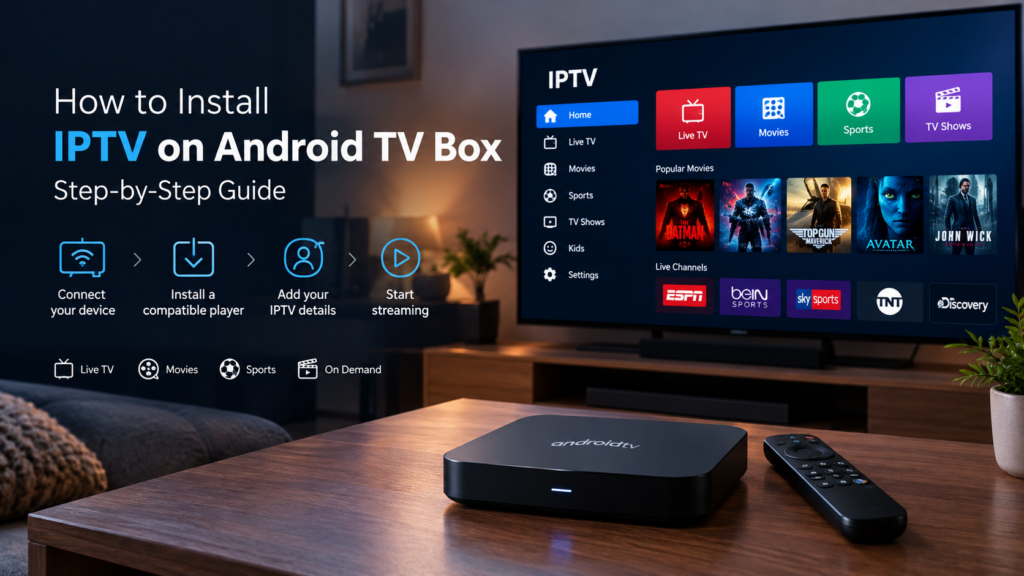
Live TV, movies, sports, and on-demand content also become more accessible on a bigger screen with an Android TV Box. If you want to learn how to install IPTV on Android TV Box, there are steps you have to follow that include: preparing your Android TV Box, installing a compatible player, and entering your access details.
Prepare Your Android TV Box
Prior to your “Android TV IPTV setup“, connect your Android TV Box to your internet connection and to your television. Verify that the device has sufficient storage for the application and that the operating system is up-to-date. A strong internet connection is essential, especially when streaming at HD, FHD, and 4K quality.
Install a Compatible IPTV Player
How to Select the Best IPTV Player for Android Box: Your Android TV Box’s IPTV Player can be selected from the list of available apps in the Google Play Store. Search for an app from a reliable provider, examine the app’s features, then install it according to the directions on-screen.
There are a number of IPTV apps for Android that work with playlists and various other formats. The particulars are going to be different from app to app, so use the instructions provided by your player and service.
Add Your IPTV Service Details
Once you have purchased the player, launch it and navigate to the section where you can add a playlist, account, or service. Follow the provider’s instructions, which may ask for login details or another supported method of access.
Customers for EPIX IPTV can access their account information or watch a tutorial video below to get started with their subscriptions. They are compatible with Android devices and IPTV players, with help available for installation, login, playlist loading, and playback.
Configure Your Streaming Settings
After you’ve added your account or playlist, give the app some time to load all the available content. After it’s done doing that, you can start browsing through the different categories like live channels, movies, sports, news, and so much more.
Video quality is based on your internet speed for an enhanced Android Box streaming setup. EPIX IPTV allows you to stream in HD, FHD, and 4K (if supported by your internet bandwidth and hardware). What do you do when streaming halts? Check your internet speed, close the app, and try a lower quality.
Test the Connection
Once you’ve configured the device, try out a few channels or programs to make sure all is functioning correctly. Navigation, playback, sound, loading time, and other aspects of the process should be checked. Make sure to review your account status and connections first before calling customer support if necessary.
EPIX IPTV offers an epix iptv free trial, which you can test before choosing a paid plan (see the plan conditions provided by the EPIX IPTV providers). For those of you looking for epixiptv usa online, you can see the epixiptv plan options and epixiptv devices supported, epixiptv activation, and epixiptv conditions.
Conclusion
Getting an Android TV Box set up may be the most comfortable way to access the various supported IPTV content. Installing a supported player, setting up your account, and testing your connection: each step is an opportunity for a hassle-free viewing experience. The best IPTV service: Wide device compatibility for many supported devices, HD and 4K (where supported), quick activation, and customer support to get you up and running and get you streaming. EPIX IPTV offers live channels, sports, movies, shows, news, and international channels on supported devices and on any supported plan.